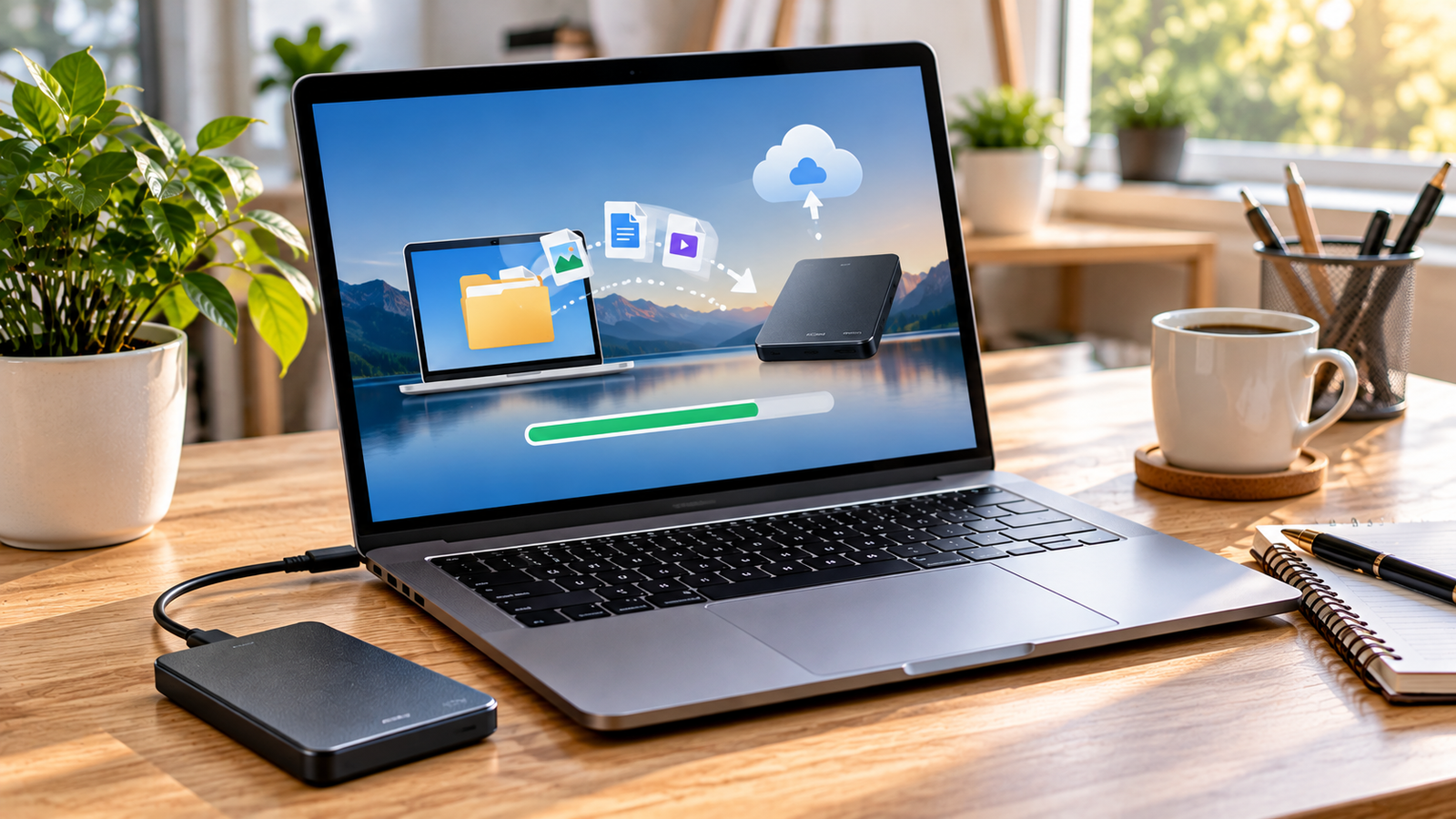
How to Back Up Your Computer: A Complete Beginner’s Guide
Imagine turning on your computer one morning and discovering that your important documents, family photos, work files, and personal projects have disappeared. A hard drive failure, malware infection, accidental deletion, or unexpected system problem can cause serious data loss.
Fortunately, you can reduce this risk by backing up your computer regularly. A backup is an extra copy of your important data that you can use to recover files if something goes wrong.
In this beginner’s guide, you will learn how to back up your computer, compare external hard drives and cloud storage, use built-in Windows and Mac backup tools, and create a simple backup routine to protect your digital files.
What Is a Computer Backup?
A computer backup is a separate copy of your files, folders, or entire system that you can restore when the original data is lost or damaged.
Depending on the backup method, you may be able to recover individual documents, personal photos, applications, settings, or an entire operating system.
For example, if your laptop stops working because its internal drive fails, a backup stored on an external drive or cloud service can help you recover your important files.
Backups are useful for several reasons:
- Protecting personal photos and videos.
- Preserving school assignments and work documents.
- Recovering files after accidental deletion.
- Reducing the impact of hardware failure.
- Recovering from certain malware and ransomware incidents.
- Transferring important information to a replacement computer.
However, a backup only helps if it contains the data you need and can be restored successfully. That is why regular backups and occasional recovery tests are important.
Why Is Backing Up Your Computer Important?
Computers store valuable information, but storage devices and software are not completely reliable.
A hard drive or solid-state drive can fail without much warning. Files may also become inaccessible because of accidental formatting, operating system problems, theft, fire, or malicious software.
Even cloud synchronization is not always a substitute for a proper backup. If you delete a file or unwanted changes synchronize across devices, those changes may affect your other copies as well.
A separate backup gives you another recovery option.
For most people, the most practical approach is to keep at least one backup separate from the computer itself. For especially important information, maintain an additional copy in another location.
1. Choose the Right Backup Method
There are several ways to back up a computer. The best option depends on your budget, internet connection, available storage, and how much data you need to protect.
External Hard Drive or SSD
An external hard drive or solid-state drive connects to your computer through USB or another supported connection.
You can use it to store copies of documents, photos, videos, and other important files. Depending on your operating system, you may also be able to create automated backups or a complete system recovery backup.
Advantages:
- Does not require an internet connection for local backups.
- Can store large amounts of data.
- Usually offers a one-time hardware purchase rather than a recurring storage subscription.
- Makes it possible to restore large files without downloading them.
Disadvantages:
- Can be damaged, lost, or stolen.
- May become unavailable if the drive fails.
- Can be exposed to ransomware if permanently connected and writable.
An external hard drive is often an economical choice for large personal collections. An SSD is generally faster and more resistant to physical shock, but it may cost more for the same capacity.
Cloud Backup
Cloud backup stores copies of your data on remote servers through an internet connection.
Examples include dedicated backup services and cloud storage platforms such as Google Drive, Microsoft OneDrive, and Apple iCloud. These products do not all provide the same backup capabilities, so check which features are included.
Advantages:
- Can protect files against the loss or damage of your computer.
- May support automatic backups.
- Lets you access files from multiple devices.
- Can provide an off-site copy without maintaining another physical location yourself.
Disadvantages:
- Initial backups may take a long time.
- Uploading large files requires sufficient internet bandwidth.
- Some services charge recurring fees.
- Account security and recovery settings are important.
- Synchronization alone may not protect against every type of deletion or file corruption.
Cloud backup is particularly useful when you want an additional copy of important files stored away from your home or office.
USB Flash Drive
A USB flash drive can store documents, small projects, and selected personal files.
It is portable and convenient, but small flash drives are easy to lose and may not offer the capacity or reliability needed for a comprehensive backup.
Use one for selected files or as an additional copy rather than relying on a single flash drive for all your important data.
Network-Attached Storage
Network-attached storage, or NAS, is a storage device connected to your home or office network. It can provide a central location for backups from multiple computers.
A NAS may be useful for families, small businesses, or people with large media collections. However, it requires additional setup and maintenance. A NAS located in the same building also does not protect against every disaster, such as theft or fire.
2. Back Up Your Windows Computer
Windows provides several backup and recovery features. The exact options depend on your Windows version and configuration.
Option A: Copy Important Files to an External Drive
This is one of the easiest approaches for beginners.
- Connect an external hard drive or SSD to your computer.
- Open File Explorer.
- Locate your important folders, such as Documents, Pictures, Videos, and Desktop.
- Copy the files you want to protect.
- Open the external drive and paste the copies into clearly named folders.
- Wait for the transfer to finish.
- Open several backed-up files to verify that they work.
Create a folder such as Computer Backup - October 2026 and organize the copied files inside it.
This method is straightforward, but it does not automatically update your backup when files change. Repeat the process regularly or use an automated tool.
Option B: Use Windows Backup
Supported Windows versions provide Windows Backup features that can help protect selected folders, settings, and other information through your Microsoft account and associated services.
To get started, open Settings and search for Windows Backup. Review the available options and choose what you want to protect.
Keep in mind that Windows Backup features may rely on cloud storage and account settings. They are not necessarily a complete, independent image of your entire computer.
Option C: Use File History
File History is a Windows feature that can save versions of files in supported personal folders to an external drive or network location.
Where available, you can configure it through Windows settings or the Control Panel.
A typical setup involves:
- Connecting an external drive.
- Opening the File History settings.
- Selecting the drive or network location.
- Turning on the feature.
- Checking that backups are running.
File History can be useful when you need to restore an earlier version of a document. Availability and setup can vary across Windows editions and configurations.
Option D: Create a System Image or Recovery Plan
If you want to recover more than personal files, consider whether you need a system image or another full-system recovery solution.
A full-system image can capture a broader set of system data, depending on the tool used. It may help restore a computer after serious system or storage problems.
Not every Windows version includes the same imaging tools, so check Microsoft’s current documentation or use a reputable backup application that supports your system.
Remember that a system recovery image is not a substitute for keeping separate copies of your most important documents.
3. Back Up Your Mac
Mac computers include Time Machine, Apple’s built-in backup feature. Time Machine can create regular backups of files and supported system information to a compatible storage destination.
How to Set Up Time Machine
- Connect a suitable external storage drive to your Mac.
- Open System Settings.
- Search for Time Machine or open its settings.
- Select a backup destination.
- Follow the on-screen instructions.
- Allow the initial backup to complete.
Menu names and available options may vary by macOS version.
After setup, Time Machine can make recurring backups when the configured destination is available. You can use it to restore individual files or recover data during supported Mac recovery workflows.
If you use a portable external drive, remember to connect it regularly if it is not permanently available.
For additional protection, you can keep another backup copy in a separate location or use a suitable cloud backup service.
4. Back Up Your Files to Cloud Storage
Cloud storage can provide a convenient extra copy of your important documents and photos.
The general process is similar across most services.
- Choose a reputable cloud storage provider.
- Create or sign in to your account.
- Install the official desktop application if required.
- Select the folders you want to upload or back up.
- Wait for the initial upload to finish.
- Confirm that the files are accessible through the service.
- Review available version history and deleted-file recovery features.
Popular options include Google Drive, Microsoft OneDrive, and Apple iCloud.
Before choosing a service, compare its storage limits, costs, supported operating systems, recovery features, and account security options.
Important: A synchronized folder is not automatically a complete backup. Deleting or changing a synchronized file may affect other devices. For critical data, use a backup solution that offers appropriate version history or independent recovery copies.
5. Follow the 3-2-1 Backup Rule
The 3-2-1 backup rule is a widely used way to think about data protection.
It recommends keeping:
- 3 copies of your data: the original plus two backup copies.
- 2 different storage types: for example, your computer’s internal drive and an external drive.
- 1 off-site copy: a backup stored somewhere separate from the computer’s physical location.
For example, imagine your computer contains important work documents and family photographs.
Your setup could include:
- The original files on your computer.
- A backup on an external hard drive.
- A separate cloud backup.
This arrangement provides protection against several different problems. If your laptop is stolen, the external drive may also be at risk if it was stored beside the laptop. The cloud copy provides another recovery option.
You do not need an expensive enterprise system to apply the basic principle. Start with the equipment and services you already have, then improve your setup over time.
6. Decide Which Files to Back Up
You do not always need to back up every file on your computer. Start with information that would be difficult or impossible to replace.
Prioritize these items:
Personal documents: Work files, school assignments, spreadsheets, PDFs, and important records.
Photos and videos: Family photographs, personal videos, and original creative projects.
Desktop and Downloads: These folders often contain files that have not been organized elsewhere.
Projects: Website files, design work, code, presentations, and other active projects.
Browser and application data: Bookmarks, exported passwords where appropriate, application settings, and other information that is not already recoverable through account synchronization.
Email and messages: Important information stored locally or in services that do not retain an independent copy.
Recovery information: Product licenses, recovery keys, and other essential setup details, stored securely.
Some data can be downloaded again, such as installers and operating system updates. Other information, such as original photos or personal documents, may be irreplaceable.
Start by protecting the files you cannot easily recreate.
7. Automate Your Backups
Manual backups are better than having no backup, but they are easy to forget.
Automation helps keep your copies current without requiring you to remember every time.
On Windows, consider File History where available, Windows Backup, or a compatible third-party backup application.
On Mac, Time Machine can automate backups when the selected destination is available.
For cloud storage, configure the provider’s supported backup or folder-protection features and confirm that uploads are completing successfully.
Choose a schedule based on how frequently your files change:
- Daily: For important work documents or active projects.
- Weekly: For computers used occasionally or containing mostly stable files.
- After major changes: Before a major software upgrade, computer repair, or system migration.
For frequently changing and irreplaceable information, daily automated backups are a sensible starting point.
8. Protect Your Backups From Ransomware and Theft
Backups are most useful when they remain available after a security incident.
Ransomware can encrypt files on a computer and may also affect connected writable drives or accessible network storage. Someone who steals your computer may also steal a backup drive stored beside it.
Use these precautions:
- Keep an additional backup that is not permanently connected, when practical.
- Use a reputable cloud service with strong account security.
- Enable multifactor authentication where available.
- Encrypt backup drives if they contain sensitive information.
- Store physical backups somewhere secure.
- Keep software and security tools updated.
- Avoid opening suspicious attachments and downloads.
- Protect network storage with strong credentials and appropriate access controls.
If you encrypt a backup, keep its password or recovery key in a separate, secure place. Losing the key can make your own files inaccessible.
9. Test Your Backups Regularly
A completed backup notification does not guarantee that every important file can be restored.
Testing helps you discover problems before you need to recover your data.
At least occasionally:
- Open your backup application.
- Check the date of the latest successful backup.
- Browse the stored files.
- Restore a test document to a separate folder.
- Open the restored document.
- Confirm that important folders are included.
- Review any warnings or errors reported by the backup software.
If you rely on a full-system recovery image, review the recovery instructions and confirm that you have the necessary recovery media and credentials.
A small test can reveal missing folders, disconnected drives, or backup jobs that have stopped running.
10. How Much Storage Do You Need?
The right storage capacity depends on how much data you want to protect and whether you plan to keep multiple versions.
For example, a computer containing 200 GB of personal files may need considerably more than 200 GB of backup space if you want to retain historical versions or create full-system backups.
Consider these factors:
- The total size of your current files.
- How quickly you create new data.
- Whether you need multiple backup versions.
- Whether you want a complete system image.
- The amount of free space available in cloud storage.
Check your current storage usage before buying a drive. Choose enough capacity to accommodate growth rather than purchasing a device that will become full immediately.
11. Common Backup Mistakes to Avoid
Beginners often make a few preventable mistakes when protecting their files.
Keeping only one copy: A single external drive can fail, be stolen, or become damaged.
Backing up irregularly: An old backup may not contain recent work.
Confusing synchronization with backup: Changes and deletions can propagate across synchronized devices.
Never testing recovery: Files may be missing or inaccessible when you need them.
Keeping every copy together: A single incident can destroy multiple backups stored in the same location.
Ignoring account security: Weak passwords or compromised cloud accounts can put backup data at risk.
Forgetting important folders: Desktop, Downloads, browser data, and project directories are easily overlooked.
Avoiding these mistakes will make your backup strategy more reliable.
12. A Simple Computer Backup Plan for Beginners
If you are unsure where to begin, follow this practical plan.
Today
- Identify your most important files.
- Copy them to an external hard drive or SSD.
- Open several files to verify the copies.
- Review the available Windows or Mac backup tools.
This Week
- Set up automatic backups where possible.
- Configure cloud backup or another off-site copy for essential data.
- Secure your backup accounts.
- Check available storage space.
Every Month
- Confirm that backups have completed successfully.
- Restore a test file.
- Check whether new folders or projects need to be included.
- Review storage capacity and backup errors.
Adjust the schedule to match how frequently your files change and how much data you can afford to lose.
Conclusion
Backing up your computer is one of the most useful steps you can take to protect your digital life. Hardware failure, accidental deletion, theft, and malware can happen unexpectedly, but a reliable backup makes recovery much easier.
For most beginners, a good starting point is an external drive combined with an additional cloud or off-site copy. Use built-in tools such as Windows Backup, File History where available, or Time Machine on Mac to simplify the process.
Remember to automate your backups, secure the stored copies, and test recovery regularly. You do not need a complicated setup to get started. The important thing is to create a reliable backup routine before you experience data loss.
